The driving recorder (if equipped) records video, and optionally sound, while you drive. It can provide evidence after an accident.
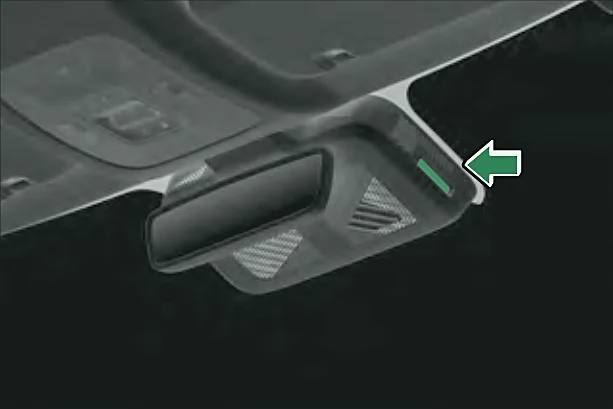
Memory card
Insert a TF (microSD) card of Class 10 or higher, formatted as FAT32, before switching on.
Caution:Do not remove the card while recording. Pause recording or turn off the recorder first.
Viewing on the touchscreen
The recorder connects to the head unit by Wi-Fi. Tap the driving recorder app to see the live picture. Swipe in from the left or right edge to go back.
Note:The Wi-Fi picture lags slightly behind real life. After you leave the app, Wi-Fi may disconnect and take a little while to reconnect next time.
Normal recording
- Recording starts when you start the car. A red dot flashes, REC shows and the timer counts up.
- Video is saved in sections to the normal video folder. When it is full, the oldest video is overwritten.
- Tap the microphone icon to turn sound recording on or off (off by default; not available on all models).
Emergency recording
- If the car is in a collision and the recorder is undamaged, it saves 10 seconds before and 10 seconds after the impact to the emergency video folder.
- When that folder is full, the oldest video is overwritten and a message tells you to check it.
Note:A collision may not always be strong enough to trigger an emergency video. If none was saved, look in the normal video folder.
Parking monitoring
- With the car switched off, if it is hit and the recorder is undamaged, it switches on and records for 20 seconds to the emergency video folder.
- Parking monitoring is on by default; you can turn it off on the touchscreen.
- If the 12V battery is low, the recorder cannot be woken by a knock.
- Recording is not guaranteed for every impact.